
How to Trade Forex Using MetaTrader 4: Quick Answer
To trade forex using MetaTrader 4 (MT4), open and log in to a trading account, select a currency pair in Market Watch, examine its bid and ask quotes, plan an entry and exit, calculate your lot size, and use New Order to place a buy or sell trade. Monitor the position in Terminal → Trade, adjust permitted orders if needed, then close and review it. Start on a demo account so you can learn the steps without risking real money.
This guide follows one hypothetical EUR/USD buy trade from setup to review. It focuses on the classic MT4 desktop terminal; labels and workflows may differ on mobile or browser versions. If you need a broad introduction to markets and trading terminology before using software, begin with FXGlory’s general how-to-trade-forex guide.
| Step | MT4 action | Question to answer before moving on |
|---|---|---|
| 1. Connect | Log in to a demo trading account | Am I connected to the correct account and server? |
| 2. Read | Choose EUR/USD and inspect its quote and chart | What price would I actually buy or sell at? |
| 3. Plan | Set direction, stop, target and lot size | How much could this trade lose? |
| 4. Execute | Complete the New Order ticket and submit | Do the submitted details match the plan? |
| 5. Manage | Watch the Trade tab and close or modify appropriately | Is the position behaving as expected, and what will I record? |
What Is MetaTrader 4 and How Does Forex Trading Work on It?
MetaTrader 4 is trading-platform software, not a broker. It provides currency quotes, interactive price charts, technical-analysis tools and an order interface. A broker such as FXGlory provides the trading account, access to available symbols, and the execution and account conditions that apply to your orders.
On FXGlory’s MetaTrader 4 platform, traders can work with charts, custom indicators, Expert Advisors and active or pending orders. Those advanced features are optional: a first-time user should learn manual order entry and position management before exploring automation. Platform availability and exact instrument specifications depend on the account and trading environment.
Buying EUR/USD means taking a position that benefits if the euro rises against the US dollar, all else equal. Selling takes the opposite directional exposure. The software displays the currency pair and quote, but it does not decide whether a trade is suitable or how much risk you should take. A demo trade is an exercise in accurate execution and review, not proof that the directional idea will work.
How to Set Up MetaTrader 4 With FXGlory
The setup goal is simple: create a practice environment, install the correct platform, log in with trading-enabled credentials, and verify the connection before opening any order.
Step 1: Open an MT4 demo account
Use FXGlory’s demo-account page to get started and confirm the available registration process. Record the trading account number, password and designated server securely. Demo funds are virtual, but demo access still requires correct credentials. FXGlory states that its demo environment may differ from live trading, including fewer instruments and different order-rejection behavior.
Step 2: Install the desktop platform
Use the download options on the official FXGlory MT4 page and follow the FXGlory MT4 installation instructions if necessary. Open the installed desktop terminal and allow it to load. Installation menus, operating-system prompts and download links can change, so the current platform page should be treated as the source for downloads.
Step 3: Log in to the correct trading server
- In the desktop menu, choose File → Login to Trade Account.
- Enter the MT4 trading-account number in Login and the account password in Password.
- Choose the server supplied for that account. FXGlory’s Helpdesk names GloryGroup-Demo and GloryGroup-Live; follow your account’s current credentials if labels differ.
- Confirm that quotes update and that the terminal is connected before proceeding.
FXGlory distinguishes the master password, which permits trading, from the investor password, which provides read-only access. If you can view charts but cannot place orders, check which password you used. The detailed steps are in FXGlory’s MT4 login guide.
Step 4: Verify the correct account before trading
Look at the account displayed in Navigator or Terminal, confirm whether it is a demo account, and check the account currency, balance and connection. Do not assume that opening the MT4 program automatically logs you into the right account. When working on a shared device, protect your credentials and avoid leaving a live account open.
Understanding the MT4 Trading Interface
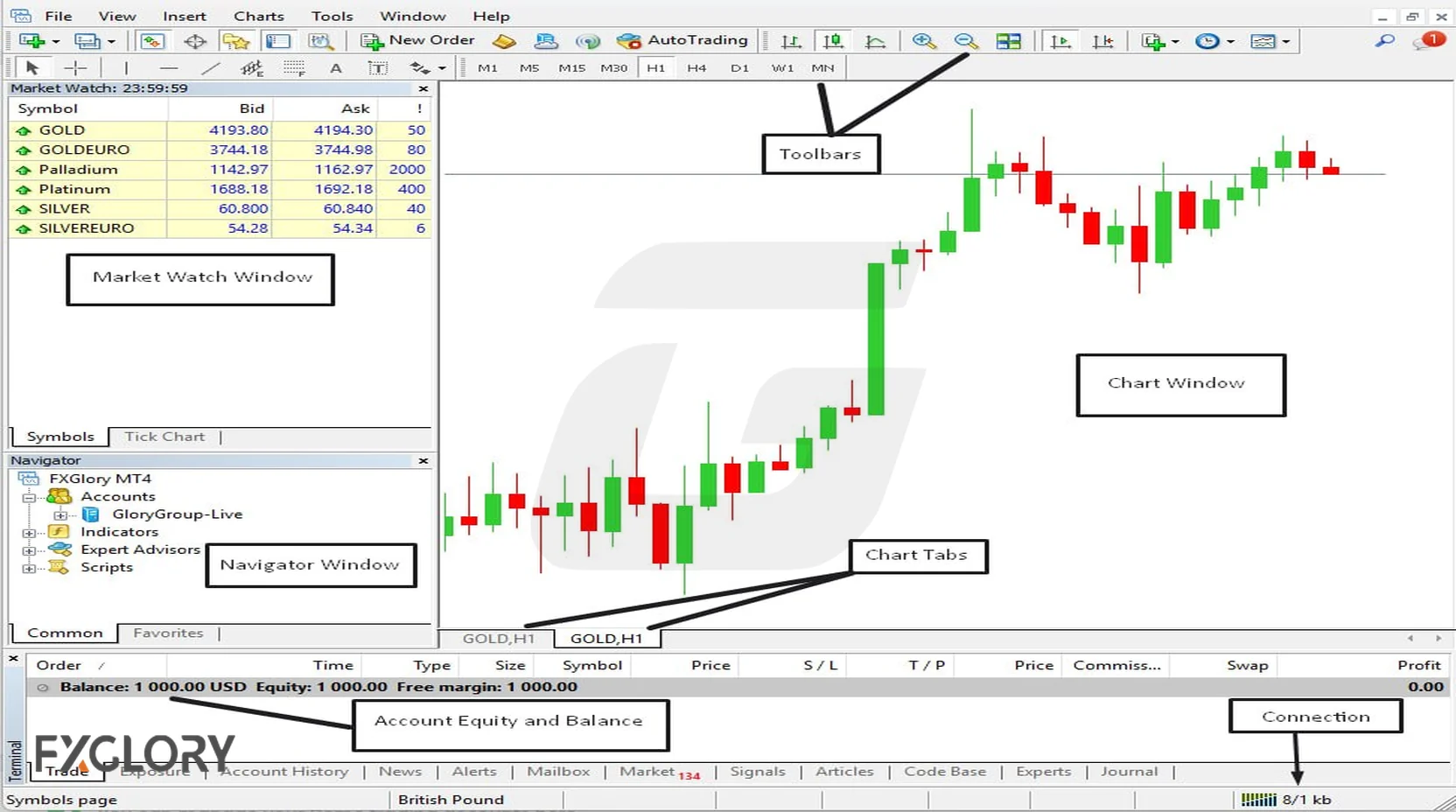
MT4 can look busy because it displays prices, charts, indicators and positions at once. You only need a handful of areas for the first exercise.
| MT4 area | What it shows | First task |
|---|---|---|
| Market Watch | Available symbols and their price quotes | Find EUR/USD and observe the bid and ask. |
| Chart window | Price history and selectable timeframes | Open a EUR/USD chart and identify the current price. |
| Navigator | Accounts, indicators, Expert Advisors and scripts | Confirm the account; ignore automation for now. |
| New Order | Symbol, volume, protective levels and order type | Inspect every field before submitting. |
| Terminal → Trade | Open positions, pending orders, balance, equity and margin fields | Check whether the example order is actually open. |
| Terminal → Account History | Closed trades and account transaction history | Review the completed exercise. |
If Market Watch, Navigator or Terminal is hidden, open the corresponding panel from MT4’s View menu; Ctrl+T toggles the Terminal panel in the classic desktop application. You can rearrange windows without changing any position. Begin by practising navigation with no open trades.
How to Choose a Currency Pair and Read Its Chart
For a consistent tutorial, use EUR/USD if it is available in your account. The interface may show symbol suffixes or other variants depending on the broker’s account configuration. Choose the exact symbol you intend to trade, not merely a similarly named chart.
- In Market Watch, look for EUR/USD. If you cannot find it, right-click Market Watch and select Show All, then verify which symbols your account supports.
- Right-click the correct symbol to open a chart, and inspect Specification if available to confirm contract size, minimum volume, volume increment and trading hours.
- Use the timeframe toolbar to switch between, for example, H1 and M15. An H1 candle represents one hour of price data; switching timeframes does not alter the traded instrument.
- Read the current Bid and Ask. In a normal two-way quote, a market buy opens at Ask and a market sell opens at Bid.
- Observe price movement and decide whether you have a defined practice scenario; do not click Buy or Sell merely because a candle is moving.
If symbols seem to be missing, see how to show all symbols on FXGlory MT4. FXGlory also explains how forex quotes work and the difference between bid and ask prices.
Plan Your Forex Trade Before Opening an MT4 Order
A successful software exercise starts with a written order plan. You should know the symbol, whether you would buy or sell, the price used for entry, a stop-loss level, a potential target, the volume and the money at risk before submitting. Margin availability is not the same as a sensible risk amount.
A complete hypothetical EUR/USD demo example
Assume a USD-denominated $1,000 demo account, an illustrative buy quote of Bid 1.10000 / Ask 1.10010, and a conventional EUR/USD contract of 100,000 EUR per standard lot. These are teaching assumptions, not a live FXGlory quote or a guarantee that every account has identical specifications.
| Trade field | Illustrative value | Meaning |
|---|---|---|
| Symbol | EUR/USD | Confirm the exact symbol and account specifications. |
| Direction | Buy | Position benefits if EUR/USD rises sufficiently. |
| Entry at Ask | 1.10010 | A market buy normally opens on the ask side. |
| Stop loss | 1.09710 | 30 pips below the assumed entry. |
| Take profit | 1.10610 | 60 pips above the assumed entry. |
| Demo account equity | $1,000 | Risk-budget reference for this illustration. |
| Illustrative risk budget | 1% = $10 | Example limit, not a universally safe percentage. |
| Trade volume | 0.03 lots | 3,000 EUR with a 100,000-unit contract. |
| Approximate pip value | $0.30 per pip | For EUR/USD when P/L is expressed in USD. |
| Planned gross loss at stop | 30 × $0.30 = $9 | If the close is filled at 1.09710. |
| Potential gross gain at target | 60 × $0.30 = $18 | If the close is filled at 1.10610. |
The 1-pip bid/ask spread is reflected in the stated ask entry and assumed bid-side exit prices; do not subtract the same spread a second time from these example outcomes. Other applicable fees, swap, slippage and gaps are not included.
| Example price level | Buy-trade interpretation | Hypothetical P/L for 0.03 lot |
|---|---|---|
| 1.10610 (Bid) | Take-profit target | +$18 gross |
| 1.10010 (Ask) | Entry | $0 at entry reference |
| 1.09710 (Bid) | Stop-loss level | −$9 gross |
Why this lot size is smaller than the risk budget
For a conventional EUR/USD contract, a 0.01-lot position corresponds to about $0.10 per pip in a USD-denominated account. At 0.03 lots that becomes about $0.30 per pip, so 30 pips is approximately $9. A theoretical position around 0.033 lots would be closer to a $10 budget, but the allowed volume step may prevent that exact size. Round down to a permitted size that does not exceed the planned budget, and verify contract size and volume step in MT4’s symbol specification.
See how forex lot sizes work, what a pip means and FXGlory’s forex risk management strategy for the broader calculations. If your account currency is not USD or you choose another pair, the pip value and conversion rules can change.
How to Place a Buy or Sell Order on MetaTrader 4
Now translate the written plan into MT4 fields. For learning, do this only in a demo account. A market order asks the broker to execute at the available market price, subject to execution conditions; the final fill may differ from the quote observed a moment earlier.
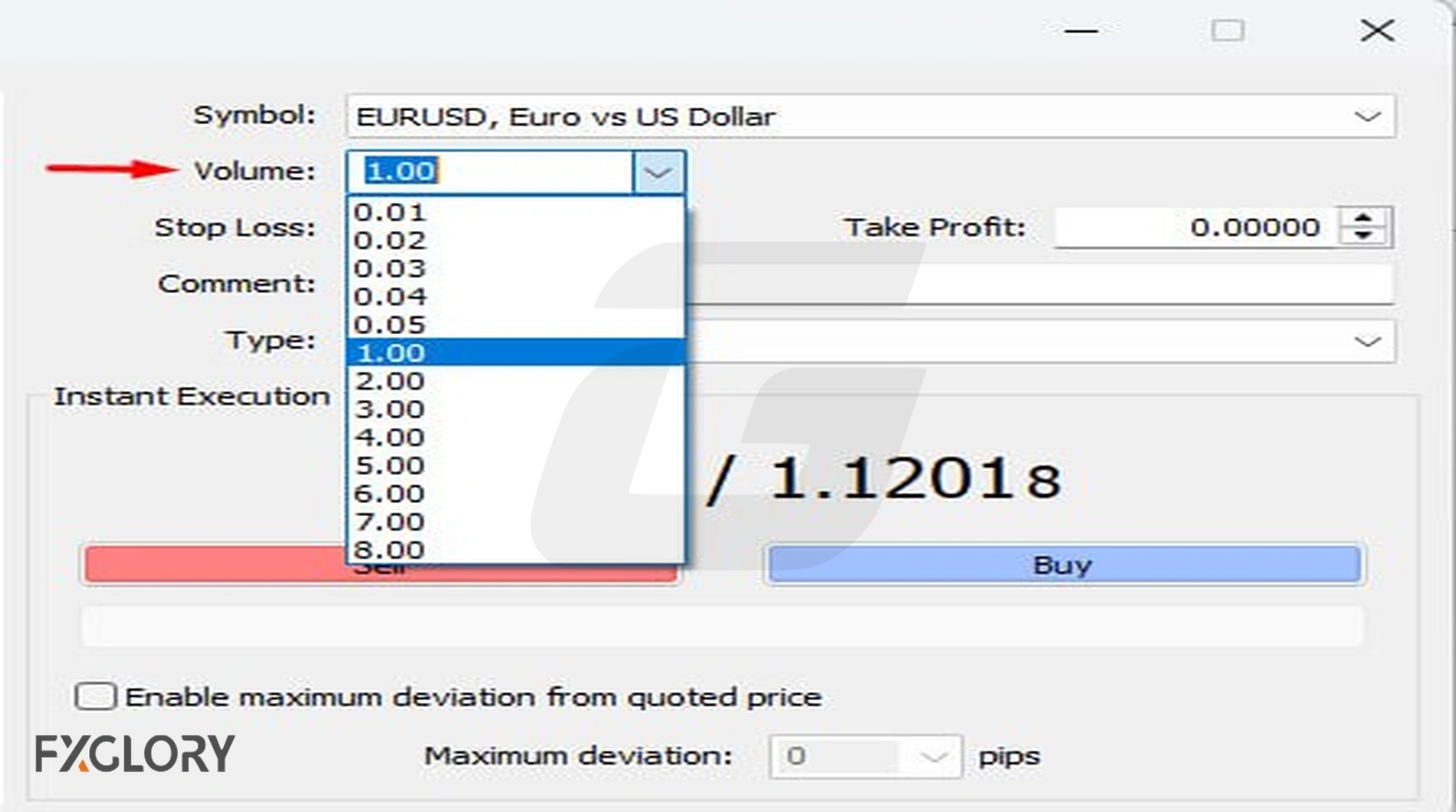
- Open the ticket: double-click the chosen symbol in Market Watch, right-click it and select New Order, or press F9 while the correct symbol is selected.
- Check Symbol: ensure the order ticket refers to the actual EUR/USD instrument you examined. Do not assume the selected chart and ticket always match.
- Set Volume: enter 0.03 only if that size is permitted by the instrument specification and still matches your demo risk plan.
- Set Stop Loss and Take Profit: in this hypothetical example, use 1.09710 and 1.10610, respectively. MT4 may refuse stops that violate the broker’s minimum distance rules.
- Check Type: use the current market-execution choice presented for that symbol rather than selecting Pending Order.
- Choose direction: click Buy for this example, not Sell. Re-read the quote and button because execution prices can change rapidly.
- Confirm execution: examine the result message and the new line under Terminal → Trade. If there is no opened position, do not assume the order succeeded.
| New Order field | Example entry | Check before submitting |
|---|---|---|
| Symbol | EUR/USD | Correct account-specific instrument |
| Volume | 0.03 | Permitted size and risk calculation |
| Stop Loss | 1.09710 | Correct price side and minimum distance |
| Take Profit | 1.10610 | Correct price side and minimum distance |
| Type | Market execution | Broker-supported ticket mode |
| Action | Buy | Direction matches written plan |
The FXGlory new-order Helpdesk article documents the F9 shortcut, ticket fields, and buy/sell order actions. A comment field or maximum-deviation option may be visible depending on symbol execution mode and platform build; those optional fields are not substitutes for position sizing or risk controls.
How to Place Pending Orders in MetaTrader 4
A market order requests execution now. A pending order is an instruction to open a position later if the specified trigger conditions are met. MT4 offers four core pending-order types, which require care because the trigger side, spread and available execution price matter.
| Order type | Typical relationship to current market | Reason for using it |
|---|---|---|
| Buy Limit | Buy at a specified price below the relevant market level | Practise a planned lower-price entry. |
| Sell Limit | Sell at a specified price above the relevant market level | Practise a planned higher-price sell entry. |
| Buy Stop | Buy at a specified price above the relevant market level | Practise a planned upward-breakout entry. |
| Sell Stop | Sell at a specified price below the relevant market level | Practise a planned downward-breakout entry. |
For instance, with EUR/USD trading around 1.1000, a learner might place an illustrative Buy Limit at 1.0980 to see how a conditional order is displayed in the Terminal. The pending order may remain unfilled, expire, or fill at a price affected by market conditions and the order type. Do not assume that reaching a particular chart line guarantees a fill at the requested price.
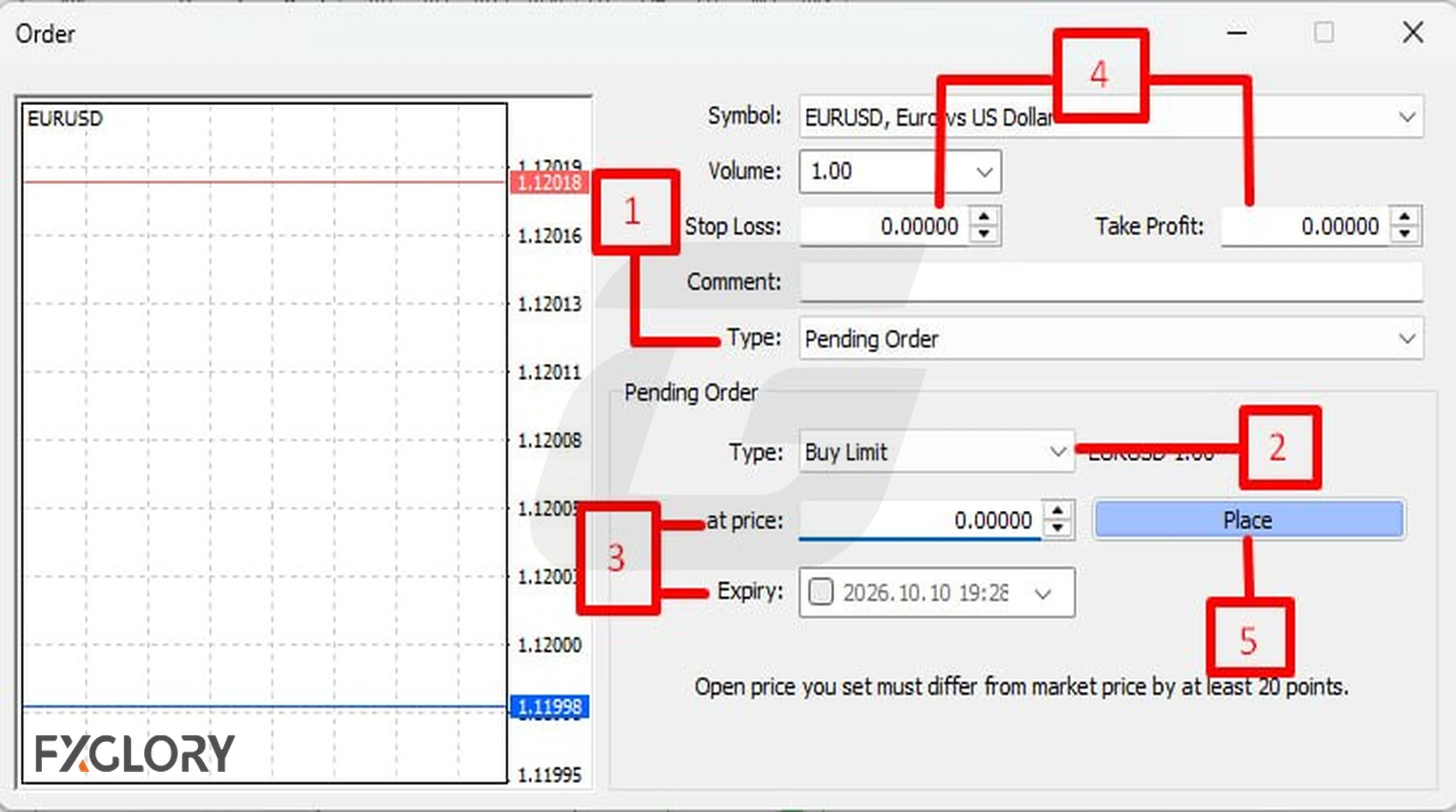
- Open New Order and change Type to Pending Order.
- Choose Buy Limit, Sell Limit, Buy Stop or Sell Stop and enter the intended trigger price.
- Check the symbol, volume, stop loss, take profit, minimum distance rules and any supported expiration settings.
- Click Place if the practice order meets the platform rules, then find it in Terminal → Trade.
- Cancel the unfilled practice order when finished, rather than leaving an unwanted instruction active.
| Above market | Reference price | Below market |
|---|---|---|
| Buy Stop / Sell Limit | Illustrative current EUR/USD quote | Buy Limit / Sell Stop |
For the supported ticket actions, see FXGlory’s MT4 pending-order instructions. Keep this first tutorial focused on understanding what each order requests; it is not a recommendation to use any specific entry strategy.
How to Manage and Close Forex Trades on MT4
Find the position and understand the changing numbers
After an order is filled, open Terminal → Trade. The row should show the symbol, buy/sell direction, lot size, open price, stop loss, take profit and current floating profit or loss. The display can also show balance, equity, margin and free margin. Balance generally excludes changes in floating P/L, while equity reflects current account value including floating results and applicable account adjustments. Do not judge risk from balance alone.
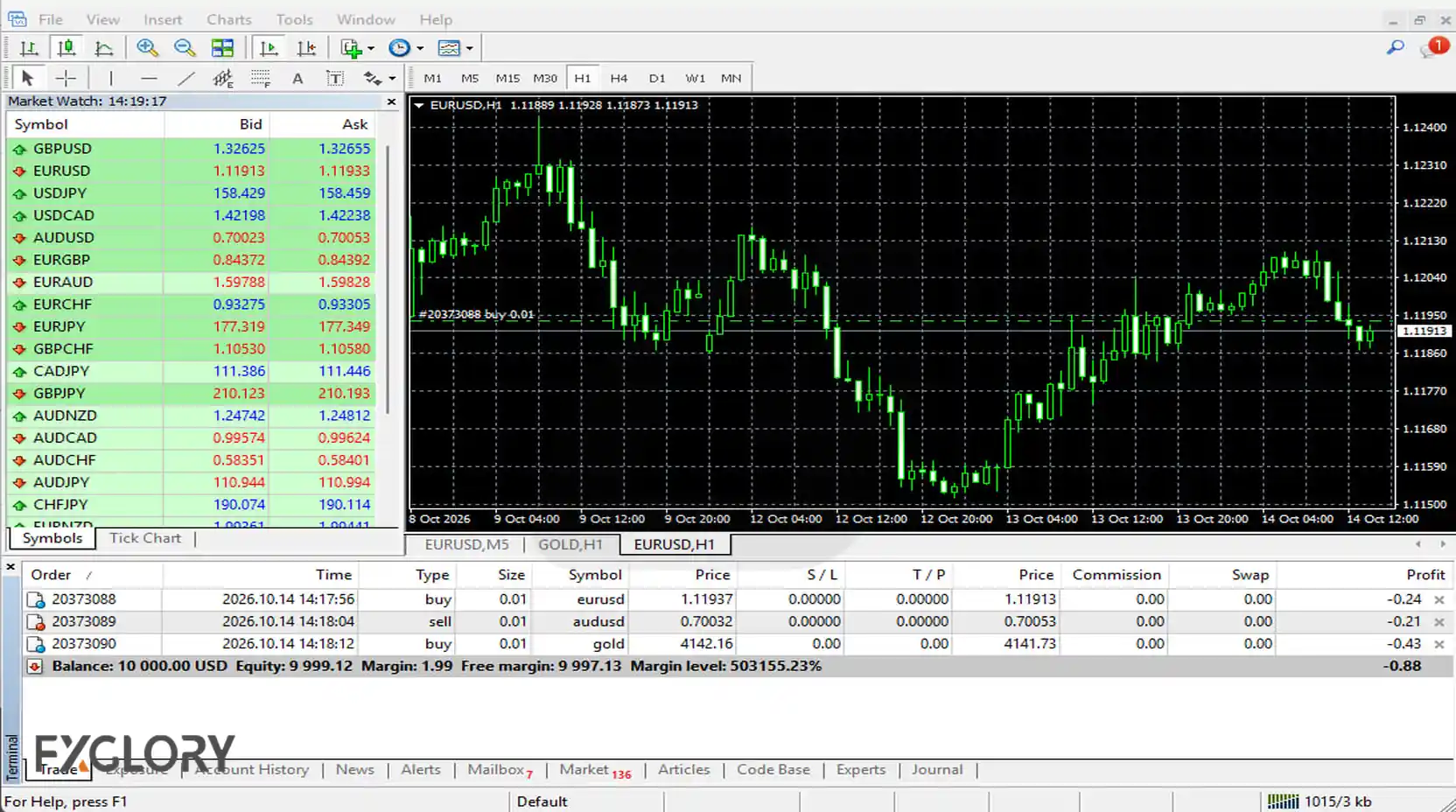
In the EUR/USD example, a buy position may initially show a small negative floating P/L because entry used the ask while a close uses the bid. If the current bid subsequently equals the illustrative stop of 1.09710 and the position is filled there, the gross loss would be about $9; if the closing bid equals the illustrative target of 1.10610, the gross gain would be about $18. These are conditional calculations, not predicted outcomes.
Modify stop loss or take profit
Right-click the open position in the Trade tab and choose Modify or Delete Order, or use the equivalent modification action shown in your version. Enter revised stop-loss or take-profit prices and submit the change. MT4 can reject modifications that conflict with the minimum stop-distance or other trading rules. Moving a stop farther away can increase planned loss; changing it should require a new risk calculation. Read FXGlory’s order modification guide for details.
Close an open trade or remove a pending order
To exit manually, find the position in Terminal → Trade, open its Close Order action and confirm the closure using the available interface. Some desktop layouts provide a quick-close control, which may close immediately without a second confirmation: do not click it casually. An unfilled pending order is removed using the delete/cancel action rather than closing an open position. FXGlory documents these actions in its how-to-close-orders guide.
Check the final result in Account History
Open Terminal → Account History after the position has closed. Record the opening and closing prices, volume, gross result, commissions if any, swap if applicable, and the reason for exit. A clear record helps distinguish a correct execution process from a profitable or unprofitable price outcome. The trade can be a valuable practice exercise even if its financial result is negative.
| Before the order | While open | After closure |
|---|---|---|
| Write plan and verify size | Monitor Trade tab and protective levels | Check Account History and costs |
| Check symbol and quote | Confirm order was accepted | Record errors and improvements |
MT4 Trading Costs, Common Mistakes and Problems
Learning the buttons is only one part of trading. Forex positions also have costs, execution rules and account constraints. Check the instrument’s current specification and the account conditions rather than assuming every currency pair behaves the same way.
| Item | Why it matters on MT4 | Practical check |
|---|---|---|
| Bid/ask spread | Buy and sell use different quote sides | Inspect both quotes before entering and exiting. |
| Commission | Some account configurations may charge transaction fees | Review the applicable FXGlory account terms and history. |
| Swap / overnight charges | Holding a position overnight can add financing credits or debits | Check the symbol’s swap specifications and account terms. |
| Slippage and gaps | Orders can execute away from a requested or stop level | Never describe a stop as a guaranteed maximum loss. |
| Leverage and margin | Margin governs collateral requirements, not total price exposure | Check required margin, free margin and position size separately. |
| Market hours and volume rules | Trading may be unavailable or volume may be invalid | Inspect Market Watch → Specification and platform messages. |
Learn the broader mechanics in FXGlory’s swap guide and leverage guide. The risks remain even when an MT4 order can be placed with only a small margin amount.
Troubleshooting: Why can’t I place a trade on MT4?
- Wrong login or read-only access: recheck account number, master versus investor password, and the correct server.
- No connection: check platform connection, internet access, and whether market quotes are updating.
- Missing symbol: use Show All in Market Watch, but remember your account may not include every advertised instrument.
- Disabled Buy/Sell: confirm account permissions, trading session, symbol availability and that the order type is valid.
- Invalid volume or stops: check lot minimum, volume increment, stop-distance rules and the correct price side.
- Insufficient margin: inspect free margin and whether the planned volume is appropriate; do not increase leverage simply to bypass the warning.
- Unexpected execution: review trade history, broker notifications, spread and the exact ticket details before repeating the request.
For platform-specific technical guidance, visit the FXGlory MT4 Helpdesk. If an order appears inconsistent with account specifications, save the order information and contact support rather than guessing.
MT4 Demo Trading Checklist for Beginners
Use this brief routine for your first several practice sessions. Completing it accurately is a more useful early milestone than reporting a short winning streak.
| Stage | Checklist |
|---|---|
| Before opening | Correct demo account and server; EUR/USD symbol; bid and ask; market open; correct volume and allowed increments; written reason for trade. |
| Risk check | Expected entry; stop and target; pip distance; estimated dollar loss; margin and free margin; current spread and other costs. |
| During the trade | Confirm the actual fill; locate it in Terminal → Trade; keep protective orders visible; avoid changing the plan impulsively. |
| After closure | Verify closing price and costs in Account History; record outcome, screenshots or notes, execution mistakes and one improvement for next time. |
A practice journal might say: “I intended to buy EUR/USD at an ask of 1.10010 with 0.03 lots. MT4 accepted the position at a different quote, so I recorded the actual fill, checked the stop and tracked the outcome. My next step is to double-check spread and stop distance before submitting.” This is an illustrative journal entry, not a report of a real FXGlory trade.
Use FXGlory’s forex trading journal guide to build a repeatable review routine. If you are still uncertain about any ticket field or monetary-risk calculation, stay with the demo environment and revisit the relevant section rather than rushing to live trading.