

Quick answer: A forex Expert Advisor (EA) is a program that runs within the MetaTrader trading terminal to analyze markets and, if enabled and properly configured, place or manage trades according to coded rules. MT4 Expert Advisors use MQL4; MT5 Expert Advisors use MQL5. They are not automatically interchangeable, and the trading logic is only as reliable as its design, data, execution conditions, and risk controls.
If you are starting with the wider subject, see our automated forex trading guide. This guide focuses on the actual MetaTrader EA environment: what it can do, how to configure it, and which checks matter before allowing it to send orders.
What Is a Forex Expert Advisor (EA)?
EA stands for Expert Advisor. In forex trading, an EA is a MetaTrader application that applies programmed trading or analysis rules. For example, it may measure moving averages, wait for a particular market condition, calculate a permitted position size, and request an order. It can also monitor or manage existing positions, depending on how its developer has programmed it.
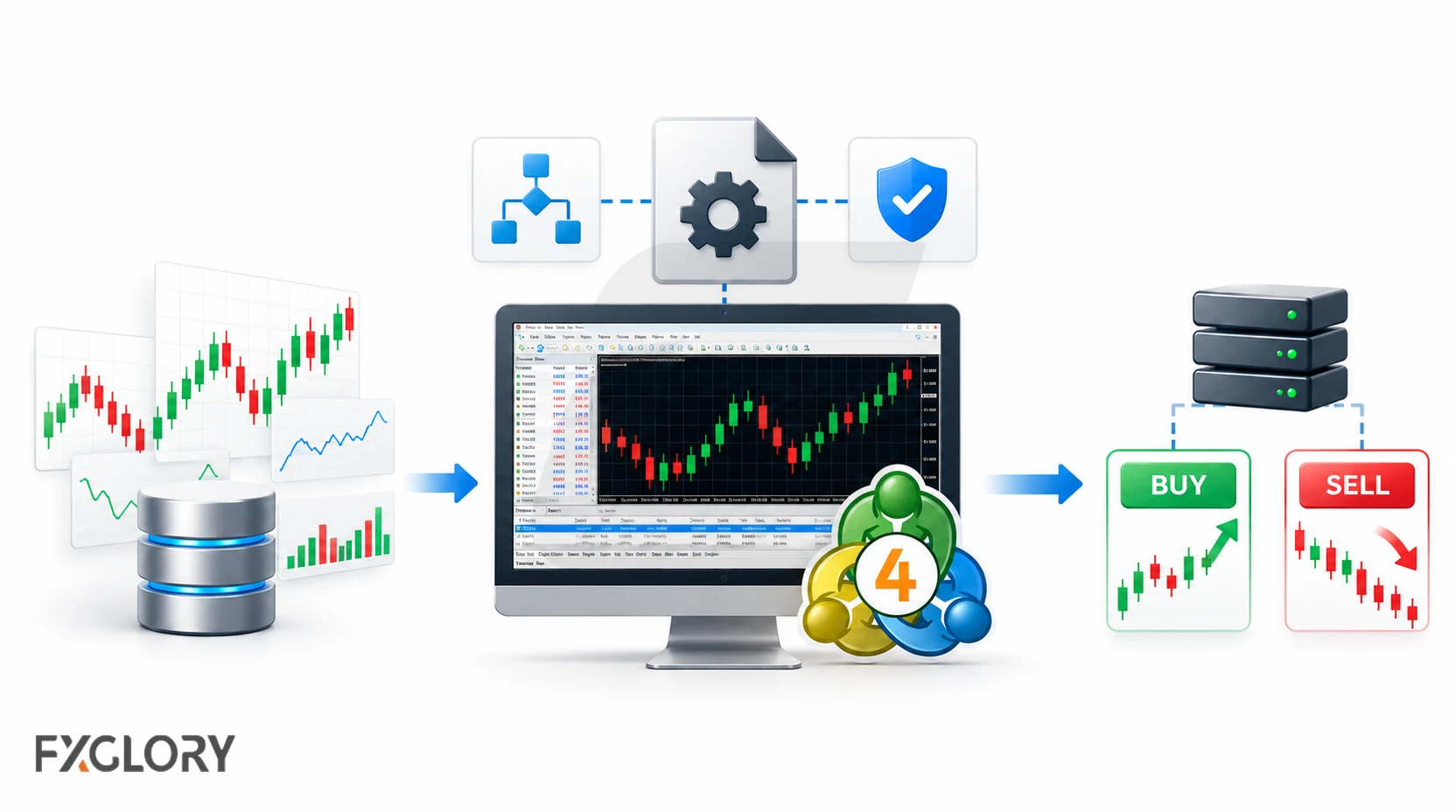
An Expert Advisor is not necessarily a fully autonomous trading system. Some EAs generate signals or manage orders entered manually; others evaluate opportunities and execute trades. The ability to run automatically is a software capability, not evidence that the strategy will be successful.
| Tool | Main purpose | Can it submit trades? |
|---|---|---|
| Expert Advisor (EA) | Monitor conditions and apply ongoing rules to a trading workflow | Yes, if programmed to do so and permitted by terminal/account settings |
| Custom indicator | Calculate or display market information | Ordinarily no; it primarily supports analysis |
| Script | Perform a defined task when invoked | Can, when the script is written and permitted to trade |
| Generic forex bot | Broad name for automation software that may use various platforms | Depends on the product and its integration |
The broader terms forex trading bots and robots overlap with EAs. The distinction is mainly platform-specific: an EA is a MetaTrader program, whereas a forex bot might instead use an external application or another trading platform. MetaTrader's MT4 Expert Advisor documentation describes programs used to automate analytical and trading processes.
How Does a Forex Expert Advisor Work?
An EA converts market observations into actions. A developer specifies what the program should read, what must be true before a trade, how much exposure is allowed, and what should happen after an order is submitted. In MetaTrader, the EA runs in the terminal and responds to incoming market information and relevant program events.
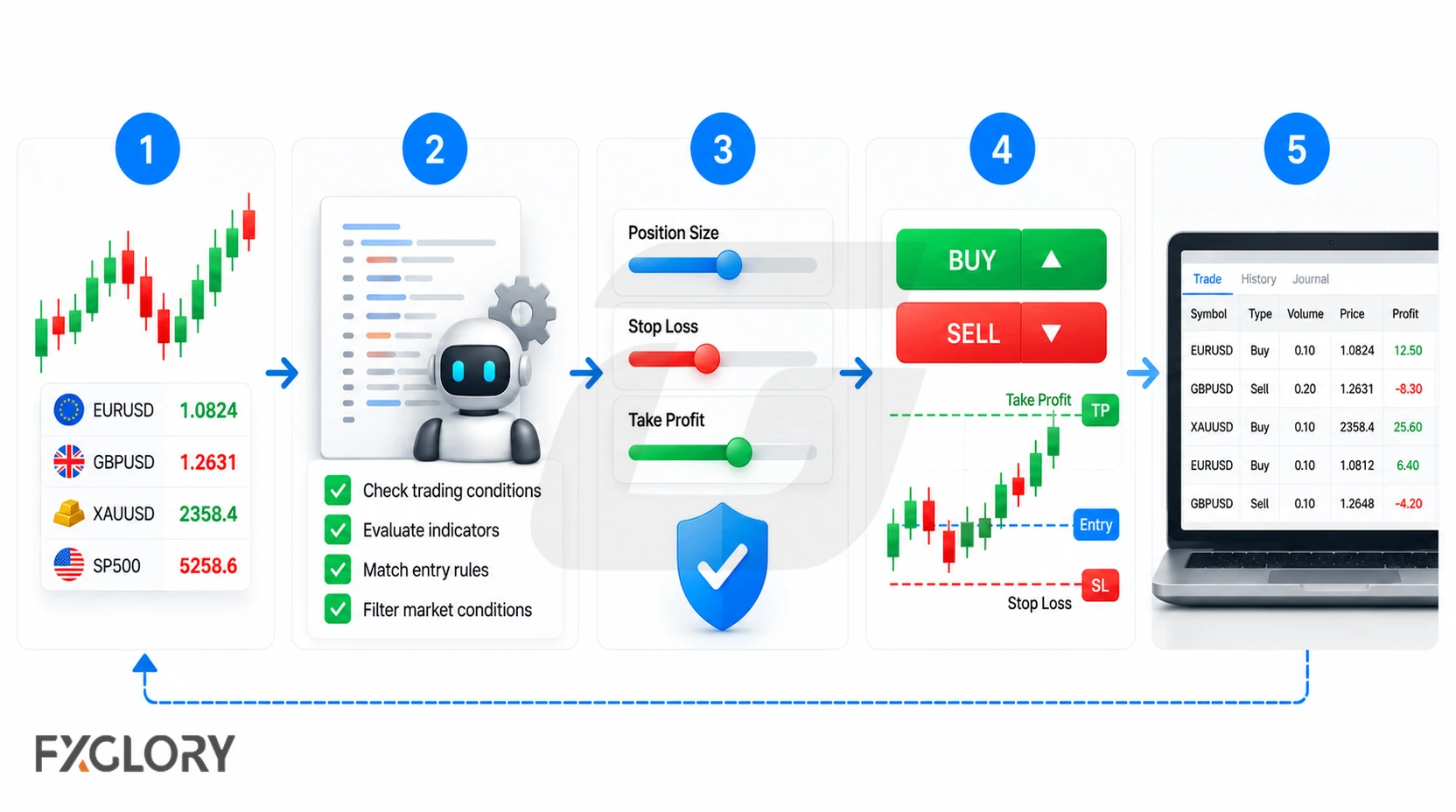
- Read inputs: Observe prices, available spread, indicators, symbol specifications, account information or other permitted data.
- Evaluate conditions: Check a rule such as a completed-candle breakout, a trend filter or an exit signal.
- Apply safeguards: Assess lot size, available margin, current exposure, stop levels and any programmed maximum-spread rule.
- Request an action: Submit, modify or close orders only when automated trading is allowed and the strategy conditions are satisfied.
- Check and log: Read the platform's response, record errors and monitor positions rather than assuming that an order executed as intended.
An Illustrative EA Decision
Imagine an EA whose documented rules permit a trade only after a candle closes beyond a defined range, provided the spread is below a chosen limit and the account has enough permitted exposure. If the breakout occurs but the spread is too wide, the correct response under those hypothetical rules is to skip the trade. That behavior matters more than a screenshot showing a profitable outcome.
Even an EA that sends an order correctly does not control the final fill price. Slippage, gaps, rejected orders and broker execution rules can change the result, so risk management and monitoring remain necessary.
Expert Advisors on MT4 vs MT5
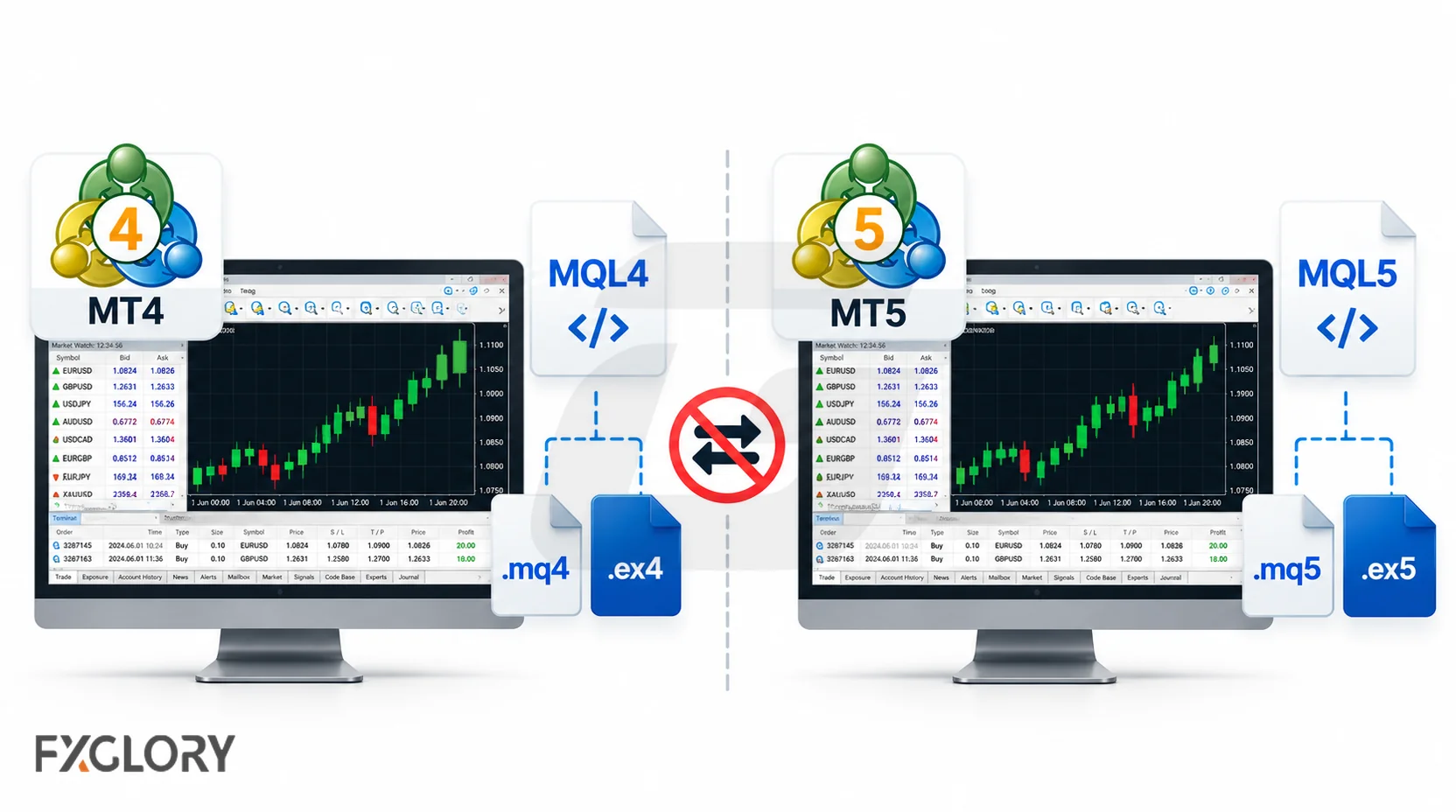
Both MetaTrader 4 at FXGlory and MetaTrader 5 at FXGlory support Expert Advisors. But they are different program environments. An EA compiled for MT4 cannot simply be copied into MT5 and expected to run; the developer must supply an appropriate MT5 build or adapt the source code.
| Feature | MetaTrader 4 | MetaTrader 5 |
|---|---|---|
| EA programming environment | MQL4 and MetaEditor | MQL5 and MetaEditor |
| Typical EA file types | .mq4 source and .ex4 compiled program | .mq5 source and .ex5 compiled program |
| Can the same compiled EA run in both? | No; an MT4-compatible build is needed | No; an MT5-compatible build is needed |
| Attaching an EA | Choose it from Navigator and attach it to a chart | Choose it from Navigator and attach it to a chart |
| Testing | MT4 Strategy Tester with its available modeling choices | MT5 Strategy Tester, including broader multicurrency and historical-tick capabilities |
| Suitable choice | An existing MT4 workflow or a required MT4-only EA | A supported MT5 EA or preference for MT5 testing and analytical tools |
For source-code developers, the languages share concepts but differ in functions and trading architecture; MetaQuotes documents these issues in Moving from MQL4. A vendor advertising “MT4 and MT5 compatible” should provide the actual versions and clear support details—not merely a single file labeled for both.
Which platform is preferable depends on your specific EA, account and workflow. MT5's additional tools do not automatically make an EA profitable, while MT4's older architecture does not mean that every MT4 strategy is ineffective.
What Can an Expert Advisor Automate?
The features of an EA depend on what its code implements. A simple program may issue an alert or close positions after a specified condition. A more elaborate one may combine signals, sizing and order management. None of these functions should be assumed unless the developer documents them and they have been checked in the terminal.
- Signals and entry orders: Detect conditions and request trades on selected instruments or periods.
- Trade exits: Close or adjust exposure when a programmed exit or risk condition occurs.
- Position sizing: Choose lot size from explicit rules, provided the EA correctly accounts for symbol specifications and available margin.
- Protective orders: Request stop-loss and take-profit levels, where supported, subject to broker rules and market execution.
- Trade monitoring: Record trade outcomes, errors, trading-session limits or account exposure.
- Ongoing management: Apply trailing stops or similar terminal-side logic while the EA is running and connected.
A crucial distinction is whether a protective order has actually been accepted by the broker or is only being calculated inside the EA. Server-held orders may remain in place when the local terminal disconnects, whereas logic that must keep running on the computer or VPS can stop updating. Neither arrangement guarantees an exact exit price during a gap.
How to Find and Choose a MetaTrader EA
MetaTrader includes sample tools, while the MT4 Market and MT5 Market list applications offered by different developers. Other EAs are sold directly by vendors or distributed as open-source projects. The source of a listing is one input to your assessment, not proof of reliable performance.
Start by establishing which terminal and account you actually use. Then apply the same due-diligence questions to each EA, whether it is free or paid.
| Check | Evidence to look for | Reason |
|---|---|---|
| Trading rules | Description of signals, exit behavior and situations when trading stops | Understand what the software will attempt |
| Risk controls | Lot sizing, maximum exposure, loss limits and any grid or averaging-down rules | See how losses may accumulate |
| Compatibility | Exact MT4 or MT5 version, build support, file format and account needs | Avoid installing the wrong program |
| Performance evidence | Dates, full equity record, drawdown, complete transaction history and costs | Distinguish selective marketing from usable evidence |
| Developer | Identity, version history, change notes, documentation and support route | Understand who maintains the software |
| Permissions | Need for DLL imports, WebRequest, external connections or account credentials | Identify software security and access risks |
| Total costs | Purchase/rental charges plus spreads, commissions, swaps and hosting | Avoid underestimating the strategy’s operating burden |
Be especially careful with claims of guaranteed income, nearly perfect win rates or “no drawdown.” A backtest is a simulation; an independently verified live record describes a particular past account and period, not the future. Request complete results, including floating losses and changes to strategy settings, before treating any statistic as persuasive.
To understand general product evaluation and warning signs, see our forex bots and robots guide. An EA should also have an operating plan: what will cause you to disable it, how you will inspect its logs, and who will update it if market or platform conditions change.
How to Install and Run an EA on MT4 or MT5
Use a trusted EA that is explicitly compatible with your installed MetaTrader version. The steps below describe the usual desktop-terminal workflow; menus and application labels can vary slightly by version and operating system. Review every setting before enabling order execution.
MT4: Add and Start an Expert Advisor
- Open MetaTrader 4 and sign into the intended account, preferably demo for an initial evaluation.
- For an EA supplied as a file, choose File → Open Data Folder → MQL4 → Experts and place the compatible EA there. Restart or refresh Navigator if necessary.
- Open Navigator (usually Ctrl+N), expand Expert Advisors, and attach the program to an appropriate chart.
- Review Common and Inputs, including position size and permission settings. Enable AutoTrading only after completing the checks.
- Verify the EA status, terminal connection and Experts/Journal messages; a visible EA icon alone does not prove that its strategy should place an order.
FXGlory provides its own MT4 EA upload instructions and Expert Advisors in MT4 guide for this procedure.
MT5: Add and Start an Expert Advisor
- Launch the MT5 desktop terminal and confirm the account and selected symbol.
- If importing a compatible file, use File → Open Data Folder → MQL5 → Experts; make the EA available in Navigator after copying or compiling it as appropriate.
- Under Navigator → Expert Advisors, attach the EA to a chart.
- Review its input parameters, license and dependencies. Permit algorithmic trading at both the platform and EA level only when appropriate.
- Inspect terminal logs, order responses and trading conditions during demo observation.
The official MetaTrader 5 EA guide explains chart attachment, individual EA permissions and terminal-wide automated trading controls. An MT4 .ex4 program is not an MT5 .ex5 program.
For an EA that needs to operate while your own computer is switched off, see how a Forex VPS can host MT4 or MT5; a VPS still requires monitoring and correct EA permissions.
Important EA Settings and Permissions
An EA can appear on a chart without having permission to submit trades. Conversely, granting a program unnecessary access can create risks unrelated to the strategy itself. Treat platform-wide controls, each EA's own settings, and the account's trading permissions as separate checks.
| Setting or condition | What to check |
|---|---|
| Terminal-wide automated trading | Whether algorithmic trading is enabled for the terminal; this can block all EAs from submitting orders |
| EA-level trading permission | Whether this particular EA is allowed to trade rather than only analyze |
| Inputs and presets | Lot size, chart/symbol assumptions, stop rules, spread filters and any saved settings file |
| Account and profile changes | Whether automated trading is disabled when switching accounts, symbols or profiles |
| External DLLs or web requests | Whether third-party libraries or outside URLs are genuinely required and trusted |
| Connectivity and logs | Whether the terminal is connected and any order rejection or initialization error is visible |
MetaTrader 5's official permission documentation explains that its terminal-wide AutoTrading setting can override an EA's individual permission. It also describes protective options that disable automation when switching accounts, profiles, symbols or timeframes. Such safeguards are particularly useful when moving between demo and live environments.
Do not enable DLL imports simply because a downloaded file asks you to. MetaQuotes warns that DLL functions from untrusted software can be dangerous. Review any request to contact an external website or access credentials as carefully as you would review a financial application. Keep backup copies of the EA version and saved inputs so changes can be traced.
How to Test an Expert Advisor Before Live Trading
Testing has two separate goals: establish that the EA behaves as programmed, and investigate whether its trading rules survive different market conditions after realistic costs. A working installation answers the first question only partially. A profitable simulation does not settle the second.
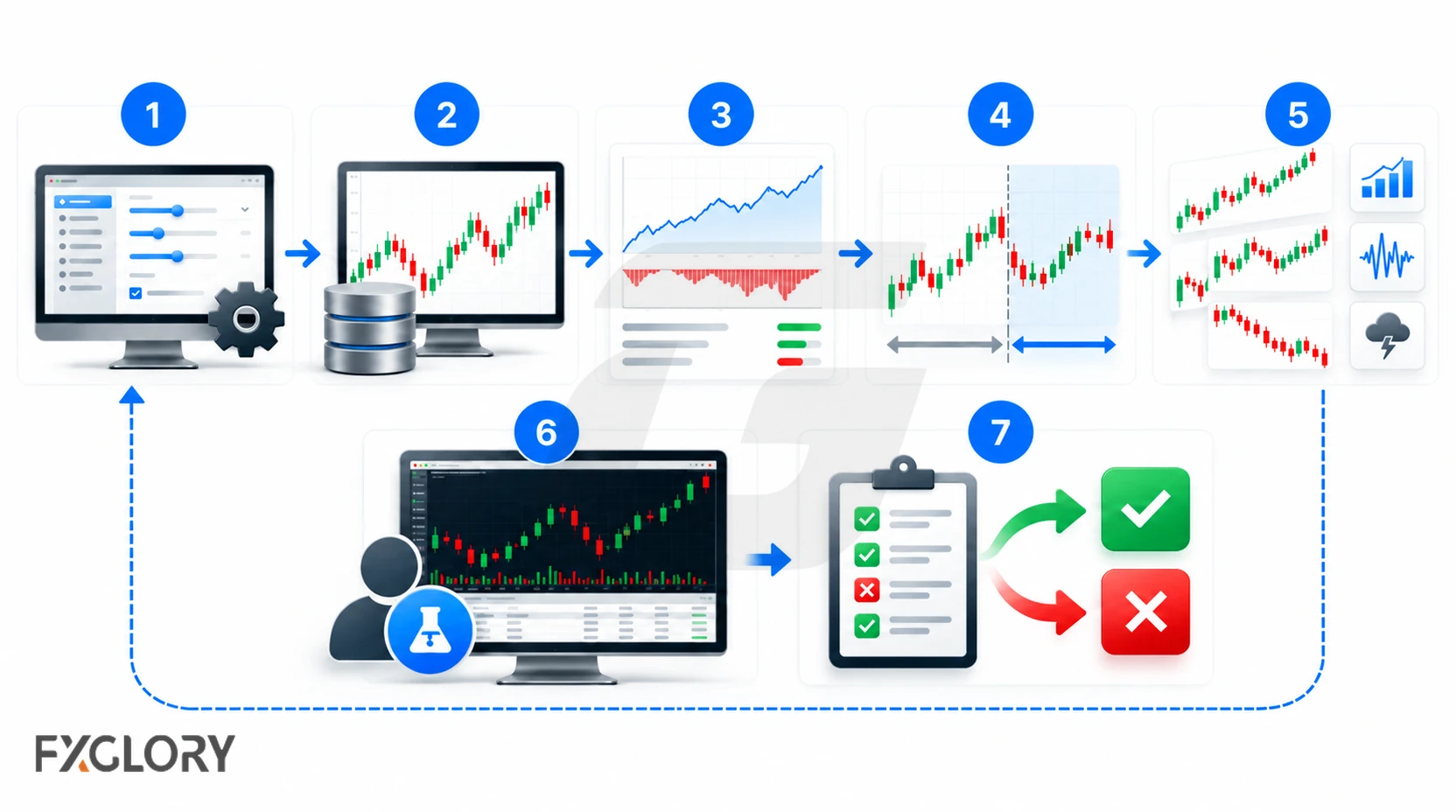
- Record the configuration. Note platform version, EA version, symbol, timeframe, lot rules, maximum exposure, commission, spread assumptions and test dates.
- Run an initial historical test. In MT4 or MT5, choose the EA and settings in Strategy Tester. Check the journal for failed orders, missing data and unexpected position behavior.
- Examine the full risk picture. Review maximum equity drawdown, losing streaks, trade count, exposure, open losses and all costs—not only the ending balance.
- Reserve untouched data. After configuring the system, check it against a separate historical period. Repeatedly retuning the EA to every losing interval can overfit the past.
- Stress-test failures. Investigate wider spreads, price gaps, missed connections, restart behavior and changes in volatility. Ensure the EA does not accidentally duplicate orders after recovery.
- Observe it on demo. Compare actual incoming signals, logs and order requests against the written rules, while recognizing demo fills can differ from live trading.
- Decide whether to proceed. Confirm account permissions, tolerated risk and your ability to supervise the system. Choosing not to run it with real funds is a reasonable outcome.
For a hands-on MT4 walkthrough, use FXGlory's Strategy Tester guide. MT5 users can consult the official MT5 strategy testing documentation, which includes features beyond the MT4 testing environment.
A Simple Cost-Sensitivity Check
Suppose a hypothetical EA has an average gross gain of 2.5 pips per trade before execution costs. If average combined spread, commission-equivalent and slippage cost were 1.5 pips, the illustrative net average would be +1.0 pip. If costs rose to 3.0 pips, it would fall to −0.5 pip. These are basic arithmetic scenarios, not backtest results or a forecast, and real costs vary by order and market condition.
| Scenario | Gross average | Assumed total trading cost | Net average |
|---|---|---|---|
| Lower-cost assumption | +2.5 pips | 1.5 pips | +1.0 pip |
| Higher-cost assumption | +2.5 pips | 3.0 pips | −0.5 pip |
Cost sensitivity is particularly important for high-frequency or small-target systems. Also examine leverage and account-level drawdown, which a pips-only illustration cannot show.
For a step-by-step example of configuring and running an EA test in MetaTrader 5, use our MT5 Strategy Tester walkthrough.
Expert Advisor Risks and FXGlory Trading Conditions
MetaTrader's ability to run Expert Advisors does not mean every EA or trading strategy is permitted on every account. FXGlory states that Expert Advisors may be used on real accounts, but scalper, news-trader and arbitrage EAs are not permitted. This restriction appears in FXGlory's official EA trading-conditions answer. Check the current policy and confirm any ambiguous strategy with FXGlory support before activating it on a live account.
The restriction is about the EA's actual behavior, not its sales label. For example, a vendor might describe software as a “momentum robot” while its order timing and short-term execution behavior raise questions about whether it falls within a prohibited category. Do not assume compatibility merely because the program opens successfully.
- Strategy risk: Rules can fail as volatility, correlations and market behavior change; averaging down can magnify exposure.
- Execution risk: Spread widening, slippage, gaps or rejections can produce a result different from a backtest.
- Operational risk: A closed terminal, broken connection, power outage, expired license or changed settings can interrupt an EA.
- Security risk: Untrusted files, DLL imports, external services or credential-sharing can compromise an account or computer.
- Account risk: Position sizes, leverage, symbol rules or broker restrictions may make otherwise functioning software inappropriate or impermissible.
Do not regard an automated stop-loss or daily-loss setting as an unconditional cap on losses. Extreme market moves can cause worse fills, and a setting that exists only inside a disconnected EA may not execute. The FXGlory forex risk-management guide explains the wider relationship between position sizing, exposure and account losses.
Is an Expert Advisor Right for You?
An EA may be useful if you have a clear, testable trading method and a practical reason to automate it: consistent rule application, repeatable order management or systematic monitoring. It is a poor substitute for understanding the strategy itself. Software can follow flawed rules as faithfully as sound ones.
Before running an EA, make sure you can explain what triggers its orders, which risks it can take, what trading costs it faces, whether it is compatible with your platform and broker rules, and how you will stop it when something goes wrong. Test the actual version and settings you intend to use. If those answers are not available, learning on demo or deciding against automation is safer than relying on a promotional promise.
Remember that successful historical tests, third-party performance claims and precise software execution do not remove the risk of losing money in live trading.